
Git Integration
Overview
Plexo integrates with Git hosting services like GitHub and Azure DevOps to automatically link commits and pull requests to your tasks. When you commit code with Task IDs (e.g., TASK-123) in your commit messages, they will automatically appear in the task detail screen.
This integration helps you track code changes related to specific tasks, making it easier to understand what code was written for which feature or bug fix.
Supported Providers
- GitHub - Full support for commits, pull requests, and organization repositories
- Azure DevOps - Full support for commits, pull requests, and organization repositories
Connecting GitHub
To connect your GitHub account to Plexo, follow these steps:
Step 1: Navigate to Organization Settings
- Go to your organization profile page
- Click on the "Git Integration" tab
- Click the "Connect GitHub" button
Step 2: Select Your GitHub Account
GitHub will ask you to choose which account you want to use to authorize Plexo:
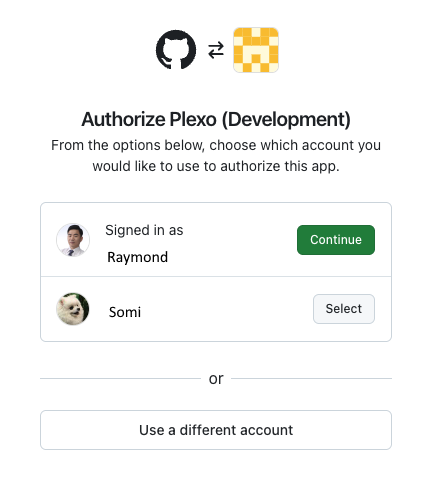
Click "Continue" or "Select" next to the account you want to use.
Step 3: Grant Organization Access
If you are a member of GitHub organizations, you need to explicitly grant access to those organizations. This is important if you want to connect repositories from your organization, not just your personal repositories.
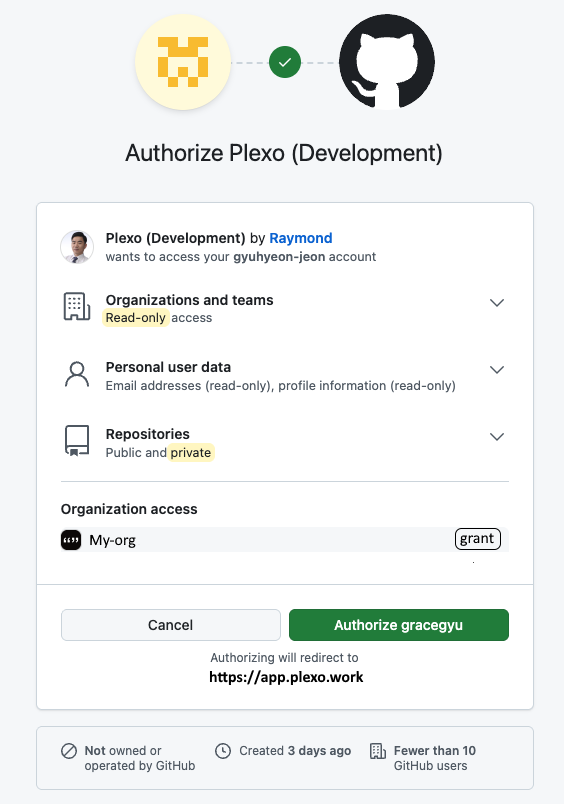
⚠️ Important
To access repositories from your GitHub organizations, you must click the "Grant" button next to each organization name in the "Organization access" section. If you skip this step, only your personal repositories will be available.
- Scroll down to the "Organization access" section
- Find the organization(s) you want to connect
- Click the "Grant" button next to each organization
- Click "Authorize [your-username]" at the bottom to complete the authorization
Step 4: Verify Connection
After successful authorization, you will be redirected back to Plexo. The "Git Integration" tab will show:
- Your connected GitHub account name
- Approved organizations (if any)
- Connected repositories
- Last sync time
Syncing Repositories
After connecting your GitHub account, Plexo will automatically sync your repositories. You can also manually sync repositories by clicking the "Sync Repositories" button.
The sync process will:
- Fetch all repositories you have access to (personal and organization)
- Create webhooks for each repository to receive commit and pull request events
- Update the repository list in Plexo
💡 Tip
If you add a new repository to your GitHub account or organization, click "Sync Repositories" to make it available in Plexo.
Linking Commits to Tasks
To automatically link your commits to tasks in Plexo, include the task ID in your commit message. The task ID format depends on your project key.
Task ID Format
Task IDs follow the pattern: PROJECT-KEY-TASK-NUMBER
Examples:
ERP-123- Task 123 in the ERP projectWEB-45- Task 45 in the WEB projectAPI-789- Task 789 in the API project
Commit Message Examples
feat: Add user authentication (ERP-123)

Implement login and registration functionality.
fix: Resolve memory leak in data processing (WEB-45)
The issue was caused by not releasing resources properly.ERP-123: Update user profile API endpoint
- Add validation for email format
- Improve error handlingPlexo will automatically detect task IDs in commit messages and link them to the corresponding tasks. You can view all linked commits in the task detail drawer under the "Commits" tab.
Linking Pull Requests to Tasks
Pull requests are automatically linked to tasks in two ways:
- PR Title/Description - If the PR title or description contains a task ID (e.g., "ERP-123: Fix login bug"), it will be linked to that task
- Associated Commits - If any commit within the PR is linked to a task, the PR will also be linked to that task
You can view all linked pull requests in the task detail drawer under the "Pull Requests" tab.
Disconnecting GitHub
To disconnect your GitHub integration:
- Go to the "Git Integration" tab in your organization settings
- Click the "Disconnect GitHub" button
- Confirm the disconnection
ℹ️ Note
Disconnecting will remove all webhooks from your repositories and revoke Plexo's access to your GitHub account. Historical commit and pull request data will remain visible in tasks, but new events will not be received.
Troubleshooting
No Repositories Found
If you see "0 repositories" after connecting:
- Make sure you clicked "Grant" for organization access if you want to access organization repositories
- Check that you have access to the repositories you want to connect
- Try clicking "Sync Repositories" to manually refresh the repository list
Commits Not Appearing in Tasks
If commits are not being linked to tasks:
- Verify that your commit message includes the correct task ID format (e.g., ERP-123)
- Check that the task exists in the project with that ID
- Ensure the repository is connected and active in Plexo
- Wait a few moments - webhook events may take a minute to process
Organization Repositories Not Syncing
If organization repositories are not appearing:
- Disconnect and reconnect your GitHub account, making sure to click "Grant" for organization access during the authorization process
- Verify that you are a member of the organization and have access to its repositories
- Check that the organization has not restricted third-party access
Connecting Azure DevOps
To connect your Azure DevOps account to Plexo, follow these steps:
Step 1: Navigate to Organization Settings
- Go to your organization profile page
- Click on the "Git Integration" tab
- Click the "Connect Azure DevOps" button
Step 2: Sign in to Microsoft
You will be redirected to Microsoft Entra ID (Azure Active Directory) to sign in with your Microsoft account. This can be either a personal Microsoft account or an organizational account.
Step 3: Authorize Plexo
After signing in, you will be asked to authorize Plexo to access your Azure DevOps account. Click "Accept" to grant the necessary permissions.
Step 4: Verify Connection
After successful authorization, you will be redirected back to Plexo. The "Git Integration" tab will show:
- Your connected Azure DevOps organization name
- Approved organizations (if any)
- Connected repositories
- Last sync time
Syncing Azure DevOps Repositories
After connecting your Azure DevOps account, you can manually sync your repositories by clicking the "Sync Repositories" button.
The sync process will:
- Fetch all repositories you have access to in your Azure DevOps organization
- Create webhooks for each repository to receive commit and pull request events
- Update the repository list in Plexo
💡 Tip
If you add a new repository to your Azure DevOps organization, click "Sync Repositories" to make it available in Plexo.
Disconnecting Azure DevOps
To disconnect your Azure DevOps integration:
- Go to the "Git Integration" tab in your organization settings
- Click the "Disconnect Azure DevOps" button
- Confirm the disconnection
ℹ️ Note
Disconnecting will remove all webhooks from your repositories and revoke Plexo's access to your Azure DevOps account. Historical commit and pull request data will remain visible in tasks, but new events will not be received.