
Import & Export
Overview
Import/Export is available on Professional and Enterprise plans. Import from Excel/CSV and export to CSV/Excel/PDF.
Importing from Excel/CSV (Professional/Enterprise only)
Supported File Formats
- Excel (.xlsx)
- CSV (.csv)
Steps to Import
- Open your project in Plexo
- Click "Import" button in the toolbar
- Select your Excel or CSV file
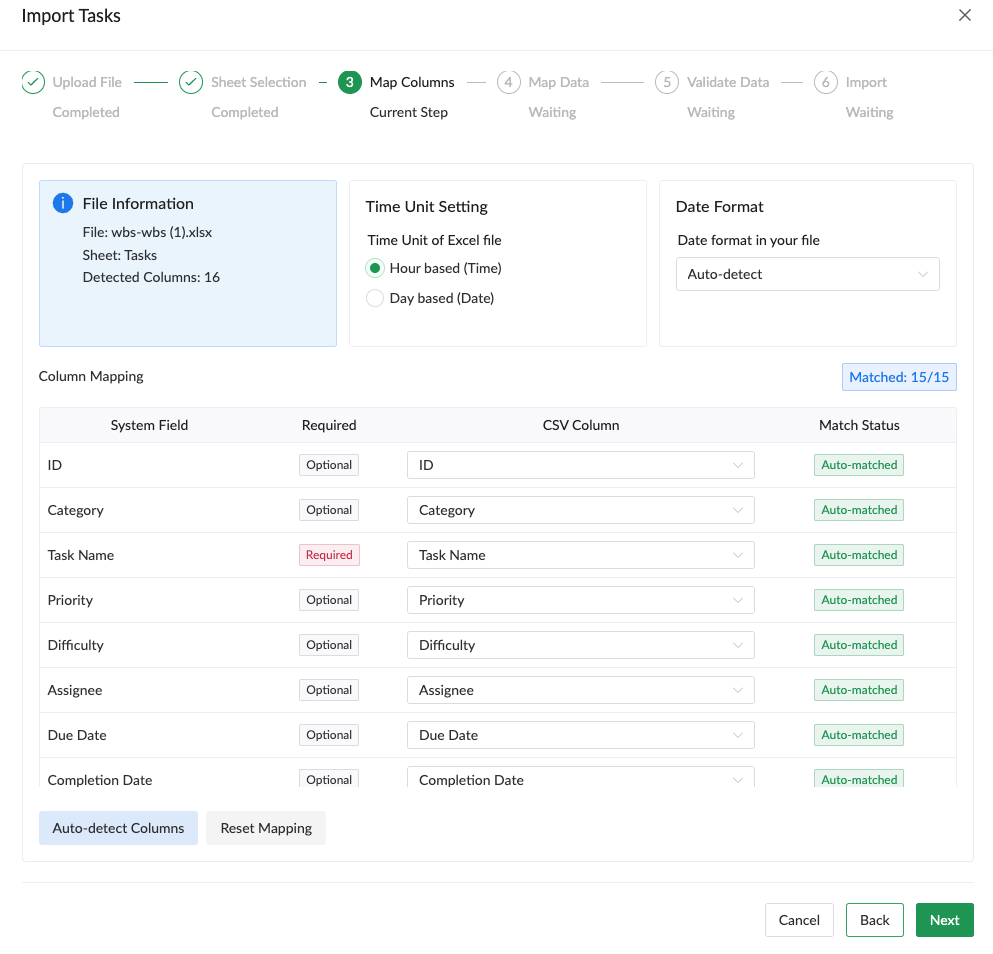
- Map columns to Plexo fields:
- Task Name → Name column
- Estimated Hours → Estimated column (or similar)
- Assignee → Assignee column
- Priority → Priority column
- Category → Category column
- Preview the import
- Click "Confirm Import"
Excel Template
For best results, structure your Excel file like this:
| Task Name | Estimated Hours | Assignee | Priority | Category | Description |
|---|---|---|---|---|---|
| Design homepage | 16 | Alice | P1 | Design | Create mockup for homepage |
| Setup database | 8 | Bob | P1 | Backend | PostgreSQL configuration |
Exporting Data
Export (Professional/Enterprise only)
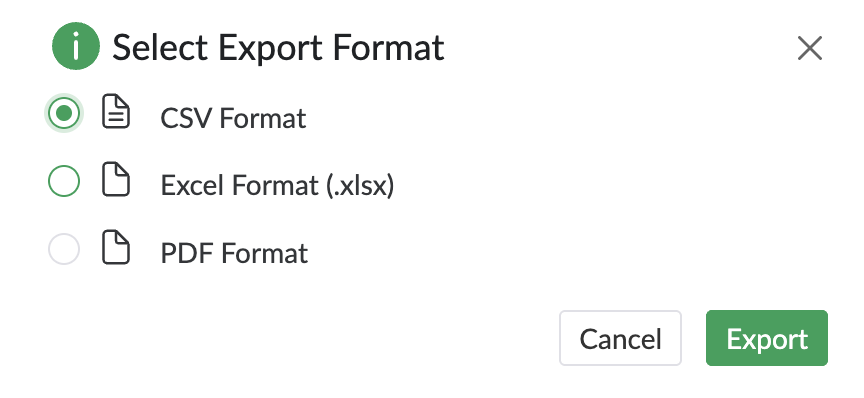
- Click "Export" button in the toolbar
- Select "Export as CSV"
- Choose what to include (all tasks or filtered tasks)
- Download file
Excel/PDF Export (Professional/Enterprise)
Coming soon! Professional and Enterprise users will be able to export to:
- Excel (.xlsx) with formatting and formulas
- PDF reports with charts and summaries
Tips
- Export your project regularly as backup
- Use CSV export to analyze data in Excel or other tools
- When importing, ensure column headers match expected field names
- Test import with a small sample file first